Workspace
| Keys | What it does |
|---|---|
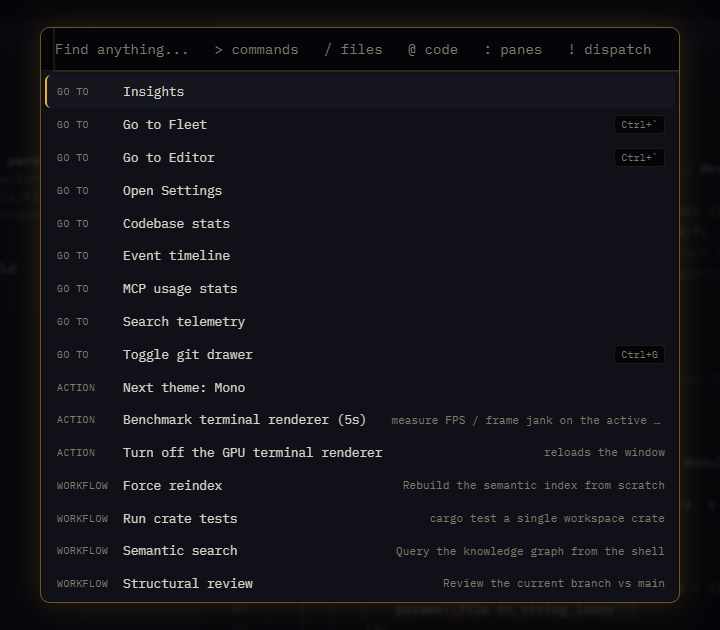
| Ctrl+P | The omnibox: search and run commands, open files, search code, jump to a pane, or hand a task to an agent |
| Ctrl+` | Flip between the fleet and the editor |
| Ctrl+J | Show or hide the agent dock |
| Ctrl+G | Show or hide the git drawer |
| Ctrl+1…9 | Jump to agent 1 to 9 |
| Ctrl+Shift+N | Go to the next thing that waits for you: an agent with a question, work to review, or changes no agent owns |
| Ctrl+Shift+O | Open a new window |
| Ctrl+, | Open Settings, ready to search them |
| Ctrl+= / Ctrl+- | Make the interface larger or smaller |
| Ctrl+0 | Put the interface back at 100% |
| Esc | Close the view on top, such as Settings |
| ? | Show every shortcut |
Fleet
| Keys | What it does |
|---|---|
| Ctrl+Tab | Next pane |
| Ctrl+Shift+Tab | Previous pane |
| Ctrl+Shift+M | Focus one pane, full size |
| Esc | Leave focus mode |
| Ctrl+D | A new shell pane after this one |
| Ctrl+Shift+D | A new shell pane |
In a terminal or the editor
A shortcut steps aside where you're typing and the key means something there. Ctrl+R stays your shell's reverse search, for example, and never reloads the window.
Click a path:line in any terminal to open the file at that line.
Change a shortcut
Settings ▸ Keyboard shortcuts lists each command with its keys. Record new keys for one by pressing them (Esc cancels). Keys another command already uses, or that copy, paste, undo or reload need, are refused, with the reason. Reset puts a shortcut back as it was.